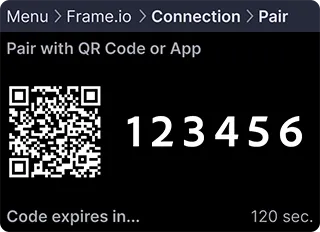
 常にフォールバックオプションを提供してください:QRスキャンができない場合の手動入力用に`user_code`と`verification_uri`を表示します。または、モバイルスキャン用の静的QRコードとして`verification_uri`を表示することも検討してください。モバイルアプリ統合では、アプリを実行しているデバイスからはQRコードをスキャンできないため、`verification_uri_complete`をタップ可能なハイパーリンクとして含めてください。
## ステップ2:ユーザー認証の投票
ペアリングコードまたはURLコードを提供した後、このリクエストでユーザーの入力を検証します:
```
curl -X POST https://api.frame.io/v2/auth/token \
--form 'client_id=[client_id]' \
--form 'device_code=[device_code]' \
--form 'grant_type=urn:ietf:params:oauth:grant-type:device_code' \
| python -m json.tool
```
### ペイロードパラメータ
* **client_id**:ステップ 1 で使用したのと同じ識別子。
* **device_code**:以前に返された `device_code` 値。
* **grant_type**:OAuth 付与タイプ識別子。この実装では常に `urn:ietf:params:oauth:grant-type:device_code`。
初回の調査試行では通常次が返されます:
```
{
"error": "authorization_pending"
}
```
この致命的でないエラーは、ユーザーがコード入力を完了していないことを示します。完了まで調査を続けます。
常にフォールバックオプションを提供してください:QRスキャンができない場合の手動入力用に`user_code`と`verification_uri`を表示します。または、モバイルスキャン用の静的QRコードとして`verification_uri`を表示することも検討してください。モバイルアプリ統合では、アプリを実行しているデバイスからはQRコードをスキャンできないため、`verification_uri_complete`をタップ可能なハイパーリンクとして含めてください。
## ステップ2:ユーザー認証の投票
ペアリングコードまたはURLコードを提供した後、このリクエストでユーザーの入力を検証します:
```
curl -X POST https://api.frame.io/v2/auth/token \
--form 'client_id=[client_id]' \
--form 'device_code=[device_code]' \
--form 'grant_type=urn:ietf:params:oauth:grant-type:device_code' \
| python -m json.tool
```
### ペイロードパラメータ
* **client_id**:ステップ 1 で使用したのと同じ識別子。
* **device_code**:以前に返された `device_code` 値。
* **grant_type**:OAuth 付与タイプ識別子。この実装では常に `urn:ietf:params:oauth:grant-type:device_code`。
初回の調査試行では通常次が返されます:
```
{
"error": "authorization_pending"
}
```
この致命的でないエラーは、ユーザーがコード入力を完了していないことを示します。完了まで調査を続けます。
**iOS アプリデバイスに関するノーツ:**ユーザーがペアリングコードを入力するために Frame.io iOS アプリに切り替えると、アプリケーションが背景に移行する可能性があります。`applicationDidBecomeActive` などでアプリケーションが再びプライマリになったら、認証流量を継続できるよう調査を再開し、ユーザーにペアリングの再起動を求める必要がなくなります。次を受信した場合: ``` { "error": "expired_token" } ``` ユーザー入力前にコードが期限切れになりました。ステップ 1 で新しいコード/QR コードを生成してユーザーに提示し、調査を再開します。 認証が成功すると次が生成されます: ``` { "access_token": "[access_token]", "expires_in": 28800, "refresh_token": "[refresh_token]", "token_type": "bearer" } ``` Camera to Cloud デバイスの認証が正常に完了しました。おめでとうございます! この応答を確認してみましょう: * **access_token**:Frame.io バックエンドアクセスのための認証資格情報。今後の API 要求のヘッダーに必要です。 * **expires_in**:アクセストークンの有効期間(秒単位)。この期間後は更新が必要です。 * **refresh_token**:アクセストークン管理に使用。主に認証更新用ですが、取り消しにも適用されます。 * **token_type**:C2C API 実装では常に `bearer`。アクションは不要です。 ## ステップをまとめる デバイスコードの期限切れの可能性を処理しながら、これらの API 呼び出しを Python 風の疑似コードで実装してみましょう: **`Python`** ```python title="Python" def authorize_with_frame(): """ Handles authorizing our device with Frame.io. """ # Our client ID can be a serial number, UUID, or some other unique string. client_id = THIS_DEVICE.get_serial_number() while True: # Make the call to Frame.io to get our device codes. pairing_codes = c2c.get_device_codes(client_id) # We need to keep track of how long we have been polling for polling_started = datetime.now() # Now we are going to poll for authorization until the user enters the code. while True: # Re-write this output each time we poll. Note: This message will only update once # per `interval` (e.g., 5 seconds), so if a smooth countdown is desired, that will # need a different implementation. print( f"\rPAIRING CODE: {pairing_codes.user_code}, " f"EXPIRES IN: {pairing_codes.expires_in - (datetime.now() - polling_started).seconds} seconds" ) # Wait for `interval` before polling each time. sleep(pairing_codes.interval) # Make a call to Frame.io to see if the user has entered the code and authorized # the device. authorization, error = c2c.poll_for_authorization( client_id, pairing_codes.device_code ) if error and error.message == "authorization_pending": # If the authorization is pending, try again. continue elif error and error.message == "expired_token": # If the pairing codes have expired, break to generate new codes. break elif error: # If there was some other error, raise it. raise error else: # If there was no error, we have our authorization! return authorization # If we get here, our pairing codes expired. Let's try again. print("\nPairing code expired. Generating a new one...") ``` **ノーツ:**外側のループは、ペアリングコードが期限切れになり新しいコードが必要になる場合を処理します。 最後のステップとして、Frame.io からプロジェクト情報を取得して表示し、意図したプロジェクトへのペアリングが成功したことを確認します。これについては次のチュートリアルで説明します。 ## ペアリング用 QR コードの作成と表示 URL/QR コードペアリングを実装する場合、応答の `verification_uri_complete` 値から QR コードを生成する必要があります。人気のライブラリを使用した各プログラミング言語の例を以下に示します: ### qrcodeを使用したPythonの例 **`Python`** ```python title="Python" import qrcode from PIL import Image import io def generate_qr_code(verification_uri_complete, size=250): """ Generate a QR code from the verification_uri_complete URL. Args: verification_uri_complete (str): The complete verification URI returned by Frame.io size (int, optional): Size of the QR code in pixels. Defaults to 250. Returns: PIL.Image: QR code image that can be displayed or saved """ qr = qrcode.QRCode( version=1, error_correction=qrcode.constants.ERROR_CORRECT_L, box_size=10, border=4, ) qr.add_data(verification_uri_complete) qr.make(fit=True) img = qr.make_image(fill_color="black", back_color="white") # Resize the image if needed img = img.resize((size, size)) return img # Example usage in authorization flow def display_qr_for_pairing(pairing_codes): """ Generate and display QR code along with manual pairing instructions. """ if hasattr(pairing_codes, 'verification_uri_complete'): # Generate QR code from the verification URI qr_img = generate_qr_code(pairing_codes.verification_uri_complete) # Display the QR code on screen # For GUI applications like Tkinter, PyQt, etc. # display_image(qr_img) # For headless devices or testing, save to file qr_img.save("frame_io_pairing_qr.png") print(f"Scan the QR code or visit: {pairing_codes.verification_uri}") print(f"Manual code: {pairing_codes.user_code}") else: # Fallback for devices that received traditional pairing response print(f"Enter code on Frame.io: {pairing_codes.user_code}") ``` ### JavaScript の例(webまたはElectron) ```javascript import QRCode from 'qrcode'; /** * Generate and display a QR code from the verification URI * @param {string} verificationUriComplete - The complete verification URI from Frame.io * @param {string} elementId - ID of the HTML element to display the QR code in */ function displayQRCode(verificationUriComplete, elementId = 'qrcode-container') { const element = document.getElementById(elementId); if (!element) { console.error(`Element with ID ${elementId} not found`); return; } // Clear any existing content element.innerHTML = ''; // Generate QR code QRCode.toCanvas(element, verificationUriComplete, { width: 250 }, function(error) { if (error) { console.error('Error generating QR code:', error); // Fallback to displaying the URL as a link element.innerHTML = `Click here to pair`; } }); // Also display manual pairing information const manualInfoDiv = document.createElement('div'); manualInfoDiv.innerHTML = `
Scan the QR code or click here to pair your device.
Manual code: ${userCode}
`; element.parentNode.appendChild(manualInfoDiv); } // Example usage in authorization flow async function requestDeviceCode() { try { const response = await fetch('https://api.frame.io/v2/auth/device/code', { method: 'POST', headers: { 'x-client-version': '2.0.0', 'x-client-platypus-enabled': 'true' }, body: new URLSearchParams({ 'client_id': YOUR_CLIENT_ID, 'client_secret': YOUR_CLIENT_SECRET, 'scope': 'asset_create offline' }) }); const data = await response.json(); if (data.verification_uri_complete) { displayQRCode(data.verification_uri_complete); window.userCode = data.user_code; // Store for display purposes } else { // Fallback for traditional pairing displayManualPairingCode(data.user_code); } // Begin polling for authorization beginPollingForAuthorization(data.device_code, data.interval); } catch (error) { console.error('Error requesting device code:', error); } } ``` ### Androidの例(Java) ```java import android.graphics.Bitmap; import android.widget.ImageView; import com.google.zxing.BarcodeFormat; import com.google.zxing.MultiFormatWriter; import com.google.zxing.common.BitMatrix; import com.journeyapps.barcodescanner.BarcodeEncoder; public void generateAndDisplayQRCode(String verificationUriComplete, ImageView qrCodeImageView) { try { MultiFormatWriter multiFormatWriter = new MultiFormatWriter(); BitMatrix bitMatrix = multiFormatWriter.encode(verificationUriComplete, BarcodeFormat.QR_CODE, 250, 250); BarcodeEncoder barcodeEncoder = new BarcodeEncoder(); Bitmap bitmap = barcodeEncoder.createBitmap(bitMatrix); // Display in ImageView qrCodeImageView.setImageBitmap(bitmap); } catch (Exception e) { e.printStackTrace(); // Fallback to displaying the URL as text } } ``` ### iOSの例(Swift) ```swift import UIKit import CoreImage func generateQRCode(from string: String) -> UIImage? { let data = string.data(using: String.Encoding.utf8) if let filter = CIFilter(name: "CIQRCodeGenerator") { filter.setValue(data, forKey: "inputMessage") filter.setValue("H", forKey: "inputCorrectionLevel") if let outputImage = filter.outputImage { // Scale the image let transform = CGAffineTransform(scaleX: 10, y: 10) let scaledImage = outputImage.transformed(by: transform) // Convert to UIImage let context = CIContext() if let cgImage = context.createCGImage(scaledImage, from: scaledImage.extent) { return UIImage(cgImage: cgImage) } } } return nil } // Usage in your view controller func displayPairingQRCode(verificationUriComplete: String) { if let qrCodeImage = generateQRCode(from: verificationUriComplete) { qrCodeImageView.image = qrCodeImage // Also show manual pairing information pairingInstructionsLabel.text = "Scan the QR code or enter code manually" pairingCodeLabel.text = userCode } else { // Fallback to manual code display pairingInstructionsLabel.text = "Enter this code on Frame.io:" pairingCodeLabel.text = userCode } } ``` ## QR コード表示のベストプラクティス QR コードペアリングを実装する際は、最適なユーザーエクスペリエンスのために以下のガイドラインを検討してください: 1. **最適なサイズ**:信頼性のあるスキャンのため、QR コードは最低200〜250ピクセル四方で表示してください。 2. **コントラスト**:QR コードと背景の間に高いコントラストを確保してください(白背景に黒が理想的)。 3. **エラー訂正**:コードの密度と信頼性のバランスを取るため、中程度のエラー訂正レベル(LまたはM)を使用してください。 4. **明確な指示**:「デバイスをペアリングするには、スマートフォンのカメラでこのコードをスキャンしてください」など、コードのスキャン方法について明確なガイダンスを提供してください。 5. **複数のオプション**:フォールバックとして、QR コードと併せて手動ペアリングコードを常に提供してください: ``` Scan to pair: [QR CODE] Or enter code manually: 573131 ``` 6. **モバイルアプリのハイパーリンク**:統合がモバイルアプリケーションの場合、同一デバイスからQR コードをスキャンできないため、`verification_uri_complete`をタップ可能なリンクとして含めてください。 7. **テスト**:信頼性のあるスキャンを確保するため、様々なデバイスと照明条件でQR コードをテストしてください。
## トラブルシューティング
問題が発生した場合は、以下の一般的なシナリオと解決策を参照してください:
* **「デバイスを接続」ボタンが表示されない**:C2C管理パネルにアクセスする際、これは以下を示している可能性があります:
* **権限不足**:権限メッセージが表示される場合は、アドビ担当営業または販売店に連絡して権限を調整するか、適切なロールを割り当ててもらってください。* **既存のデバイス接続**:1つのデバイスを接続した後、メインの「新しいデバイスを追加」ボタンは、C2C接続パネルの右上隅にある3点メニューに置き換えられます。
* **無効なクライアントエラー**:`invalid_client`応答は、通常間違った`client_secret`による、デバイス情報の不一致を示します。
* **不正なリクエストエラー**:`bad_request`応答は、不正な形式のリクエストデータを示します。フィールド名を確認し、すべての必須フィールドが含まれていることを確認してください。
問題がここで解決されない場合は、このトラブルシューティングセクションを改善できるよう、エクスペリエンスを共有してください。
## 次のステップ
チームへの連絡をお勧めします。[認証管理ガイド](./how-to-authorization-management)に進んでください。フィードバックをお待ちしております!