> This page is for 平台, version 旧版.
> For other versions, use one of these documentation indexes:
> - V4 (default): https://next.developer.frame.io/platform/v4/llms.txt
> - V4 实验版: https://next.developer.frame.io/platform/v4-experimental/llms.txt
> - 旧版: https://next.developer.frame.io/platform/v2/llms.txt
> For clean Markdown of any page, append .md to the page URL.
> For a complete documentation index, see https://next.developer.frame.io/llms.txt.
> For AI client integration (Claude Code, Cursor, etc.), connect to the MCP server at https://next.developer.frame.io/_mcp/server.
# 将自定义操作部署到 Zapier
请在**[概述页面](/docs/custom-actions)**了解该功能。
作为媒体工作流的一部分,您可能需要将 Frame.io 媒体流式传输到 YouTube 和 Wistia 等发布渠道,或者 Google Drive 或 Amazon S3 归档等存储目标位置。
虽然您可以使用 Zapier 触发器来自动化工作流,但自定义操作允许您在 Frame.io 内部创建一个菜单选项,从而为将媒体文件交付到外部位置提供额外一层控制;而且由于自定义操作只是按需触发 Webhook,您可以将它们作为自定义触发器连接到 Zapier。只需设置一次,您的团队成员和协作者就可以在 Frame.io 内部访问该自动化功能。
**本指南将向您介绍如何将 Frame.io 自定义操作连接到 Zapier,并将媒体文件传递到第三方应用程序或服务。****注意:**Webhook 是 Zapier 中的高级功能。如需以最低成本部署自定义操作,请考虑[编写自己的无服务器函数](https://github.com/Frameio/custom-actions-example-app/tree/master/examples/custom-action-offload-to-s3)。
## 架构
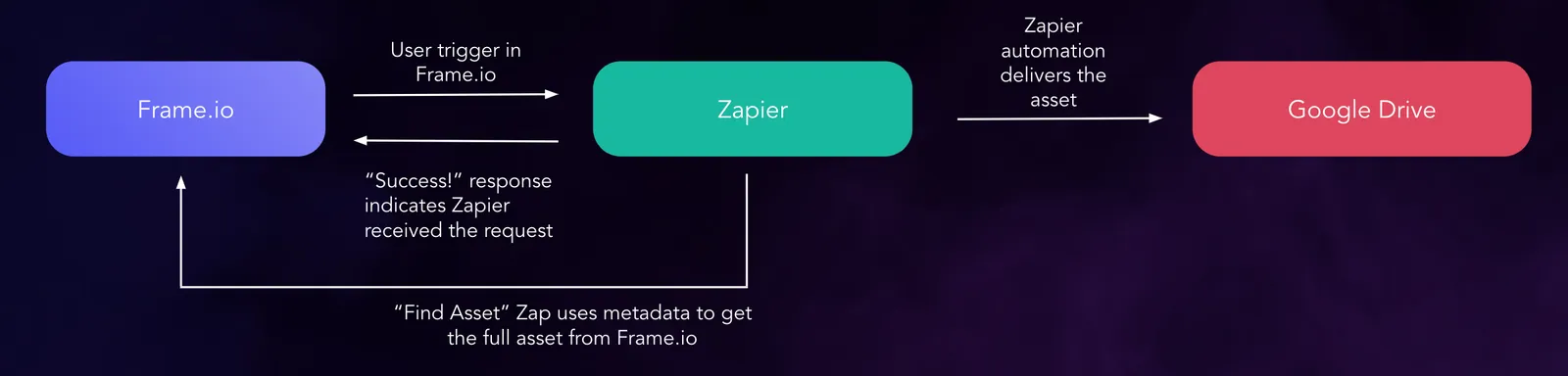 ## 设置 Zapier 并创建您的自定义操作
在 Zapier 中创建新的 Zap。对于初始触发器,请选择 [Zap - Webhooks by Zapier](https://zapier.com/apps/webhook/integrations)。将操作设置为“Catch Hook”。在这种情况下,不需要进行自定义设置,所以直接点击进入下一步:
## 设置 Zapier 并创建您的自定义操作
在 Zapier 中创建新的 Zap。对于初始触发器,请选择 [Zap - Webhooks by Zapier](https://zapier.com/apps/webhook/integrations)。将操作设置为“Catch Hook”。在这种情况下,不需要进行自定义设置,所以直接点击进入下一步: ### 测试操作
花一点时间在 Frame.io 中测试自定义操作。验证该操作是否生成了一个请求,并被 Zapier 成功捕获:
### 测试操作
花一点时间在 Frame.io 中测试自定义操作。验证该操作是否生成了一个请求,并被 Zapier 成功捕获:
 使用我们开发者网站上的[日志](https://developer.frame.io/actions)来探索自定义操作负载
### 向 Zapier 添加一个“Find Asset”步骤
自定义操作的负载只是引用了您的资产——它并不包含文件。需要额外增加一个步骤,来告诉 Zapier 应该从哪里获取该文件。向 Zap 添加“搜索”触发器 - [Frame.io - Find Asset](https://zapier.com/apps/frameio/integrations#css-d28kn1-Button__buttonText)
以下是 Find Asset 设置的实际操作过程:
使用我们开发者网站上的[日志](https://developer.frame.io/actions)来探索自定义操作负载
### 向 Zapier 添加一个“Find Asset”步骤
自定义操作的负载只是引用了您的资产——它并不包含文件。需要额外增加一个步骤,来告诉 Zapier 应该从哪里获取该文件。向 Zap 添加“搜索”触发器 - [Frame.io - Find Asset](https://zapier.com/apps/frameio/integrations#css-d28kn1-Button__buttonText)
以下是 Find Asset 设置的实际操作过程:
 您现在正在向 Zapier 传递更多关于该资产的信息,包括其名称、原始文件以及 Frame.io 对该文件运行的每个[转码版本](https://support.frame.io/en/articles/13321-what-is-my-video-converted-to-when-it-s-uploaded)。
### 将资产发送到您的目标位置
出于演示目的,我们将文件发送到 Google Drive:
您现在正在向 Zapier 传递更多关于该资产的信息,包括其名称、原始文件以及 Frame.io 对该文件运行的每个[转码版本](https://support.frame.io/en/articles/13321-what-is-my-video-converted-to-when-it-s-uploaded)。
### 将资产发送到您的目标位置
出于演示目的,我们将文件发送到 Google Drive:
 ## 后续方向
虽然 Zapier 可以说是部署自定义操作最简单的方式,但也存在一些限制。最主要的一点是,您无法以自定义操作所支持的[完整的请求-响应模式](https://docs.frame.io/docs/custom-actions#create-a-form-callback)来与用户进行通信。用户只会收到一条默认的“Success!”消息——意思是 Zapier 已处理了 Webhook 并触发了 Zap 中的操作链:
## 后续方向
虽然 Zapier 可以说是部署自定义操作最简单的方式,但也存在一些限制。最主要的一点是,您无法以自定义操作所支持的[完整的请求-响应模式](https://docs.frame.io/docs/custom-actions#create-a-form-callback)来与用户进行通信。用户只会收到一条默认的“Success!”消息——意思是 Zapier 已处理了 Webhook 并触发了 Zap 中的操作链: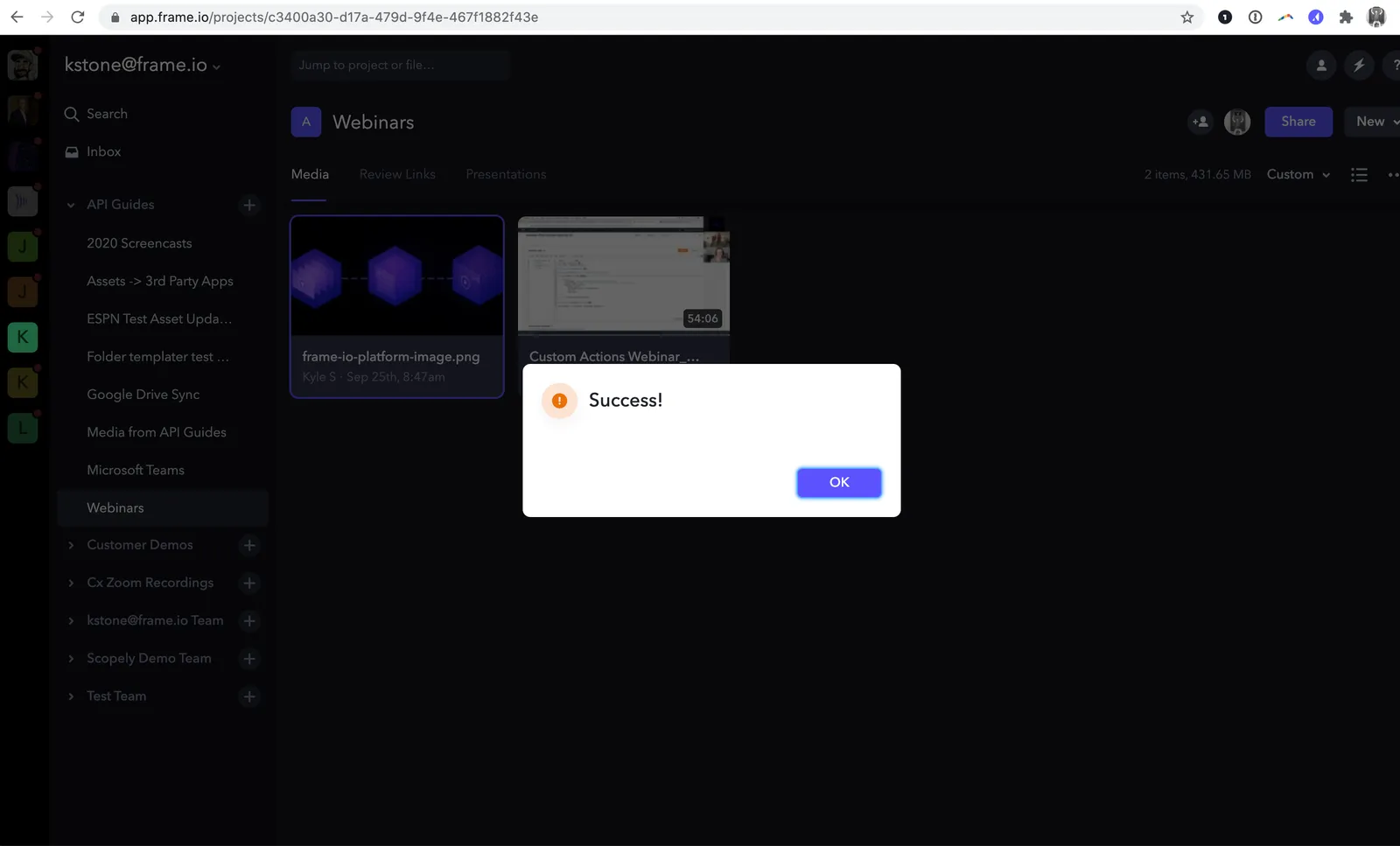 这可能会产生误导,因为“Success!”消息只是表示成功交接,即使 Zapier 工作流本身出现故障,这条消息也会显示。有关 Zapier 本身故障排除的更多信息,请查阅他们关于[探索任务历史记录](https://zapier.com/learn/getting-started-guide/task-history/)的指南。
### 构建自己的应用程序
编写一个[小型服务器应用程序](https://github.com/Frameio/custom-actions-app-python)或使用 [lambda 函数](https://github.com/Frameio/custom-actions-example-app/tree/master/examples/custom-action-offload-to-s3),可以让您处理用户输入并创建多个代码路径,这是一种很方便的方式,可以用来将文件发送到多个目标位置、对不同文件类型进行差异化处理,或者在工作流自动化中利用有关 Frame.io 用户的信息。
这可能会产生误导,因为“Success!”消息只是表示成功交接,即使 Zapier 工作流本身出现故障,这条消息也会显示。有关 Zapier 本身故障排除的更多信息,请查阅他们关于[探索任务历史记录](https://zapier.com/learn/getting-started-guide/task-history/)的指南。
### 构建自己的应用程序
编写一个[小型服务器应用程序](https://github.com/Frameio/custom-actions-app-python)或使用 [lambda 函数](https://github.com/Frameio/custom-actions-example-app/tree/master/examples/custom-action-offload-to-s3),可以让您处理用户输入并创建多个代码路径,这是一种很方便的方式,可以用来将文件发送到多个目标位置、对不同文件类型进行差异化处理,或者在工作流自动化中利用有关 Frame.io 用户的信息。