For AI agents: a documentation index is available at the root level at /llms.txt and /llms-full.txt. Append /llms.txt to any URL for a page-level index, or .md for the markdown version of any page.
Developer Tools
CommunityContact UsConsole
DocsAPI Reference
DocsAPI Reference
  • Getting Started
    • Welcome to Frame.io V2 API
    • Key Concepts
    • Authentication
  • Migration
    • V2 to V4 Migration Guide
  • OAuth 2 Applications
    • OAuth 2 Code Authorization Flow
    • Building an OAuth2 App
    • Refreshing OAuth 2 Tokens
  • Workflows - Assets
    • Reading the File Tree
    • Uploading Assets
    • Manage Version Stacks
    • Working with Annotations
    • Search for Assets
  • Workflows - Projects
    • Working with Review Links
    • Gather All Comments from a Project
  • Workflows - Admin
    • User Management
    • Working with Audit Logs
  • Automations - Webhooks
    • Webhooks Overview
    • Comment Workflows with Zapier
  • Automations - Zapier
    • Zapier Basics
    • Frame.io Resources in Zapier
    • Upload Assets to Frame.io using Zapier
    • Webhooks in Zapier
  • Custom Actions
    • Custom Actions Overview
    • Three Ways to Deploy Custom Actions
    • Deploy Custom Actions to Zapier
  • Other Tools
    • Using ngrok
    • Using Glitch
  • Troubleshooting
    • API Error Codes
    • Rate Limits
    • Browser Support
  • Deprecated
    • How to - Authorize (Hardware)
    • How to - Authorize (Application)
    • How to - Manage Auth (Hardware)
    • How to - Manage Auth (Application)

© 2026 Adobe Inc. All rights reserved.

TermsPrivacyDo not sell or share my personal information
Developer-friendly docs for your API
Logo
Developer Tools
CommunityContact UsConsole
On this page
  • Navigating resource data
  • What to look for
Automations - Zapier

Frame.io resources in Zapier

Was this page helpful?
Previous

Upload Assets to Frame.io using Zapier

Next

Navigating resource data

Our API payloads are pretty comprehensive! That means (for example), when you’re catching a change to an Asset’s Status Label field, you may end up looking at a whole lot of fields, very few of which will be immediately relevant to you.
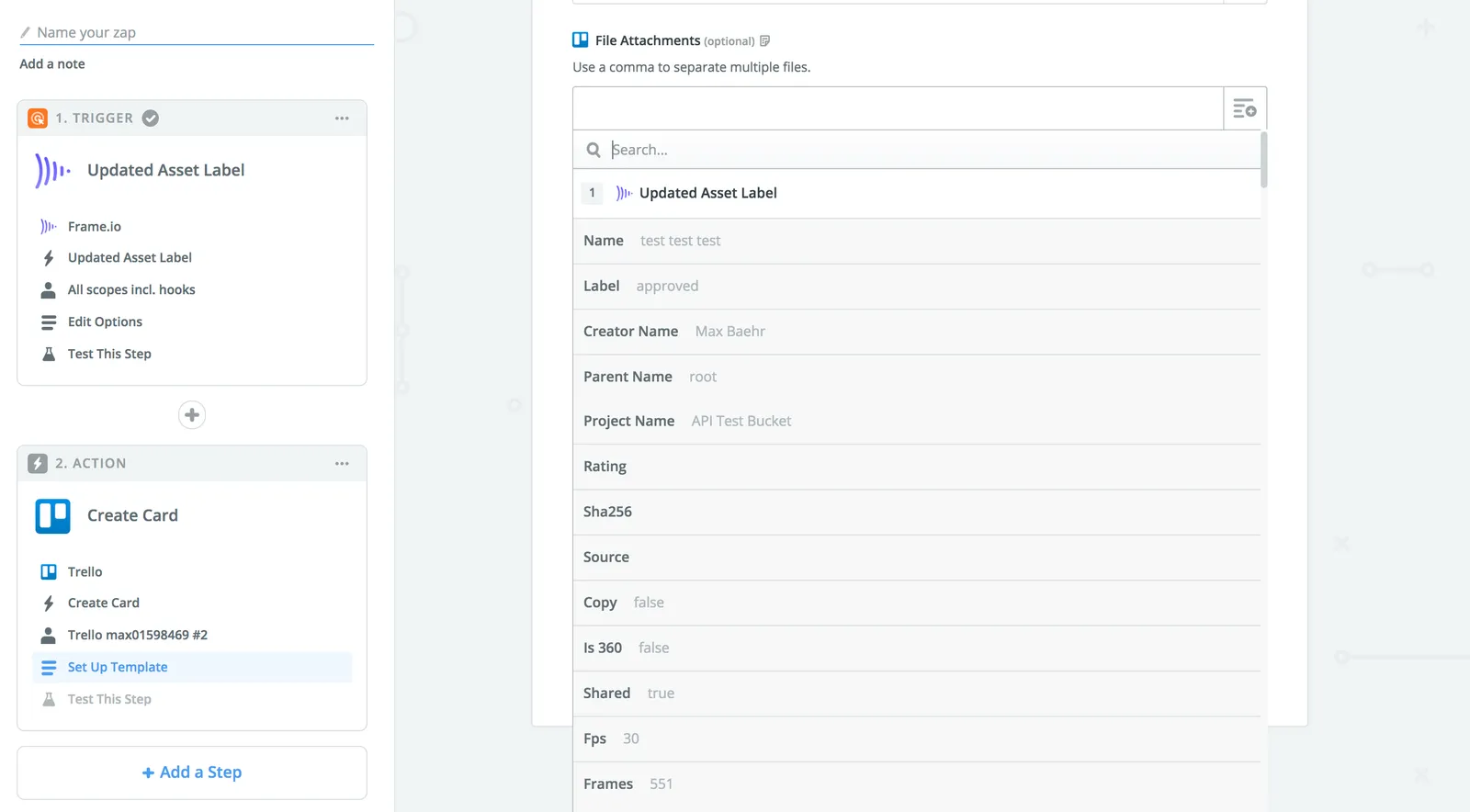
Field examples

The good news is, Zapier’s data input fields all have a search function, and using that, you can quickly get to the field you need.
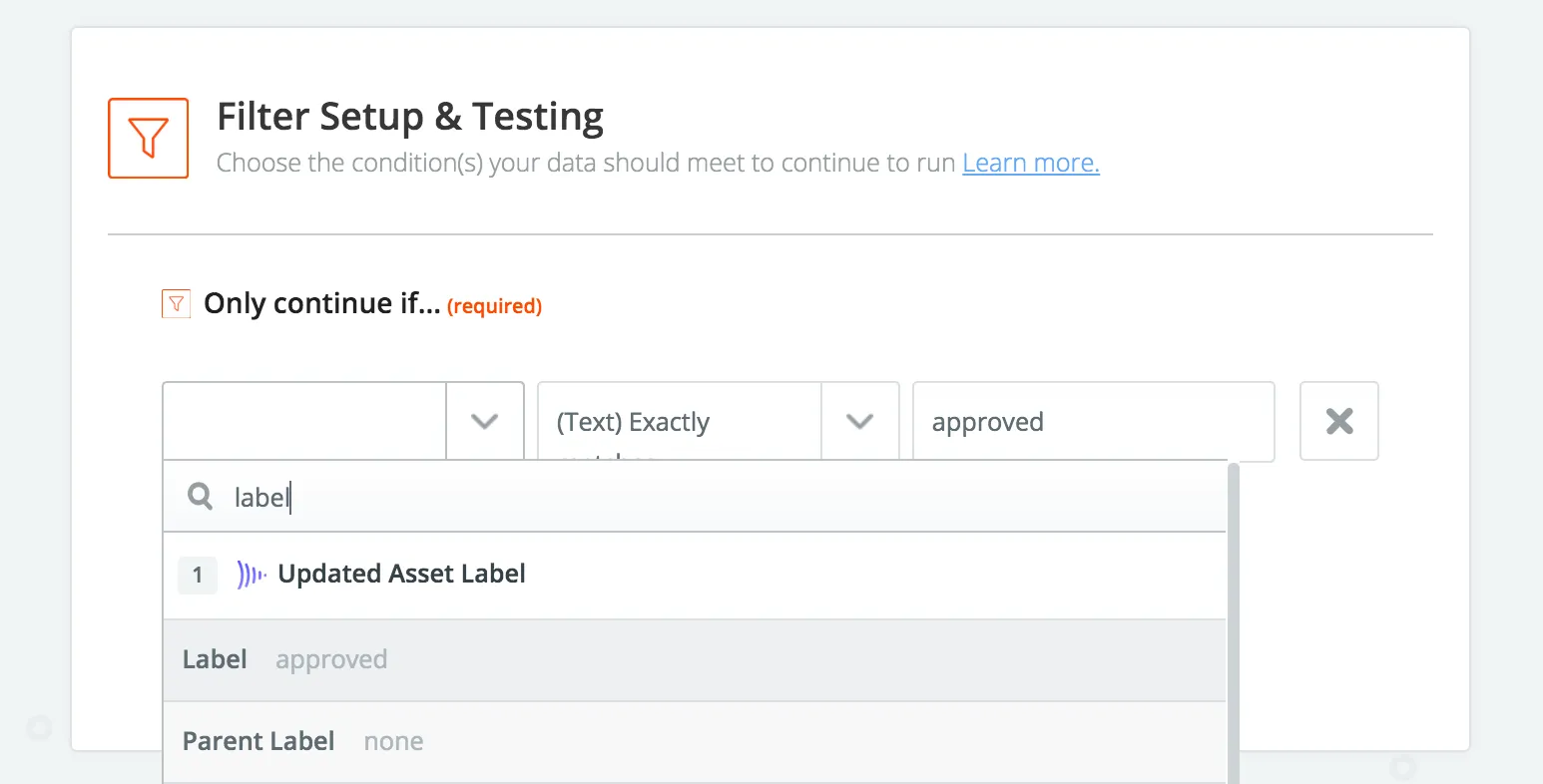
Quick-search for asset approved

Of course, it’s also helpful if you know what to look for.

What to look for

The following table is not exhaustive, but should give you a head start in building out workflows with Frame.io’s Zapier integration.

Asset URLs are long, and that's ok

The Asset URLs you see in Frame.io’s API responses are direct links to Amazon S3. These URLs can and should be used in any Zapier app context where you want to move an Asset into another system. If you have a choice between “File Attachment” and “File Attachment (URL),” please choose the latter, as URL uploads in Zapier will generally support a wider range of file types and sizes.

Resource typeField in ZapierDescription
Asset(all)OriginalThe original uploaded video, untouched. In most cases, this will be the key you want to push into other systems; but it will always be the original filetype, so may not be playable in all other contexts.
Asset (videos)H264 resolutionAll of Frame.io’s h.264 proxies are available on the Asset in Zapier.
Asset (image)Image qualitySimilar to h.264 video proxies, all proxies cut for images are also available in Zapier.
Asset (all)ThumbThe Asset thumbnail as set in Frame.io. This field is great for adding visuals to project tracking systems like Trello or Airtable.
Asset (all)LabelThe Status Label. This field will usually be paired with a “Filter” action (similar to the screenshot about).
Asset (all)Creator EmailThe email address of the original uploader.
Asset (all)Project IDThe ID of the Asset’s parent Project. This field is most useful when paired with the “Find Project” action, which you can use to fetch the Project’s name.
Asset (all)Parent IDThe ID of an Asset’s parent, which will always be one of a folder, version stack, or Project root.
CommentTextThe text of the comment.
CommentAsset IDThe ID of the Comment’s parent Asset. Helpful for passing to the Find Asset action for additional context, or for linking in external tracking tools.
CommentOwner NameThe first and last names of the user who left the Comment.
CommentOwner EmailThe email address of the user who left the Comment.
ProjectNameThe name of the Project.